
Every page remembers what it looked like
Each page, collection item and the header and footer keep a numbered version every time they're published. Compare versions on the page itself and bring an old one back into your draft.
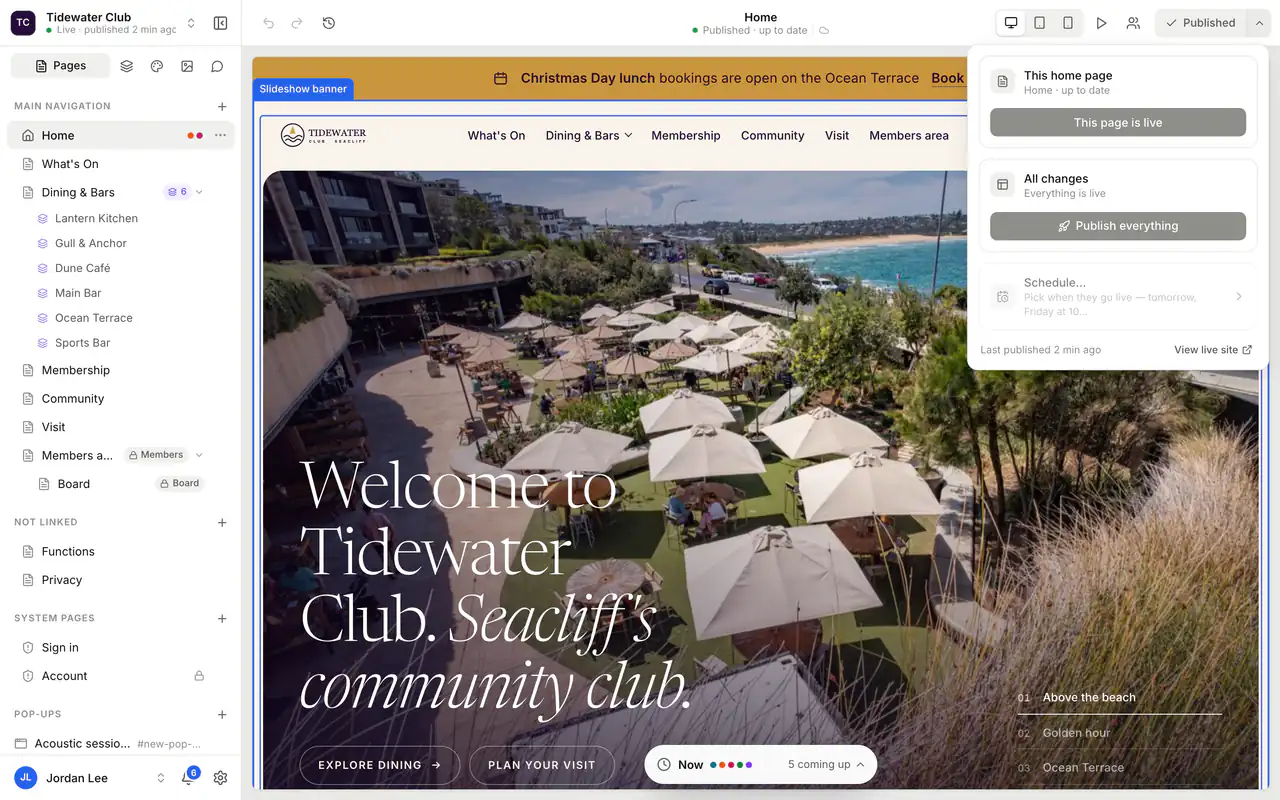 builder.webdirector.net/tidewater-club/editEach publish makes a version
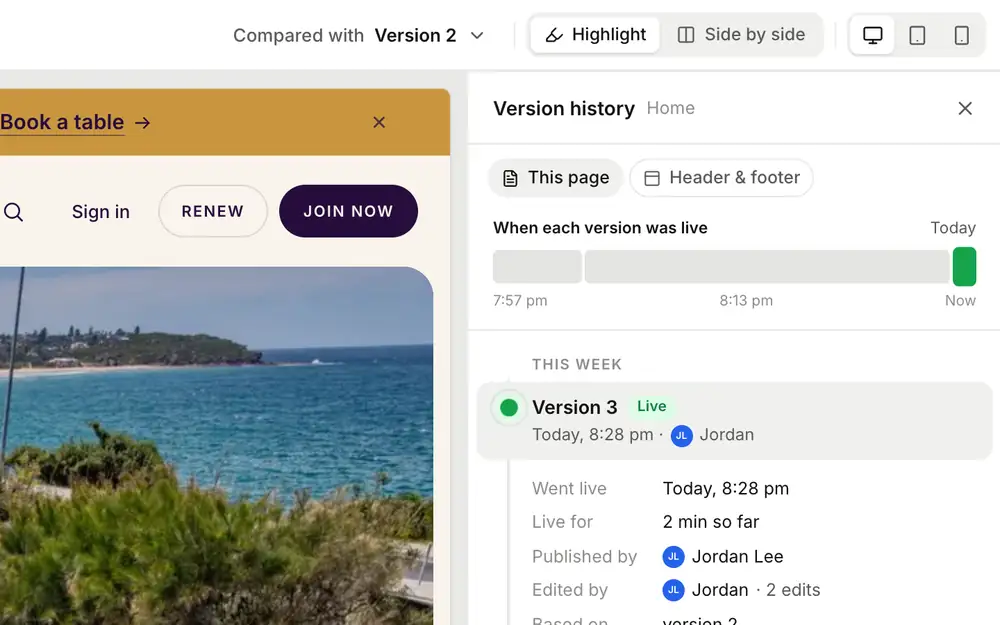
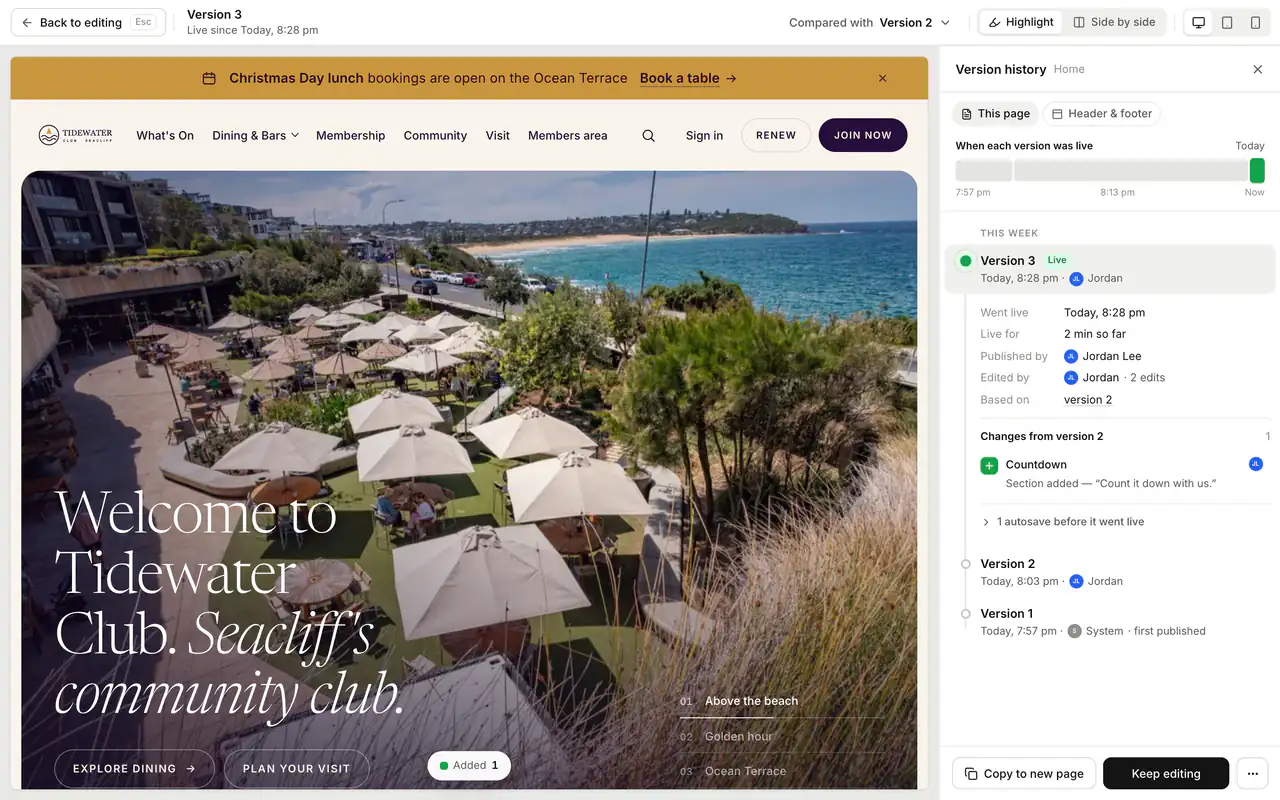 builder.webdirector.net/tidewater-club/editEvery version keptbuilder.webdirector.net/tidewater-club/editSee exactly what changedbuilder.webdirector.net/tidewater-club/editHighlight or side by side
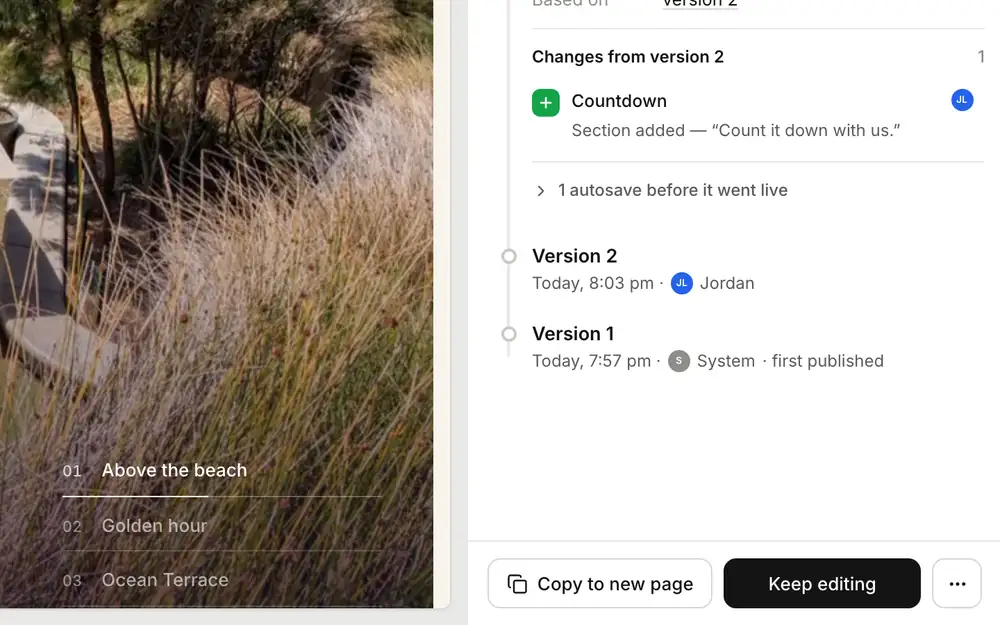
 builder.webdirector.net/tidewater-club/editCopy a version to a new page
Real WebDirector screens. Click a step, or Replay.

In the Tidewater Club demo, one example site, open History on the homepage to compare the live version with an earlier publish, with the changed sections outlined on the page.
Tidewater Club Group is a made-up organisation. Its sites use designs from Corporate Interactive’s club concepts.Version history, answered
Does restoring change the live site?
No. A restore goes into the draft so you can check it first. People with permission to publish can choose to restore and publish in one go.
Will I lose my current changes if I restore?
No. Your current draft is kept in the history as a saved draft before the restore runs.
Why doesn't restore change the page's address?
The address and menu position are part of your site's structure. Changing them back could break links or clash with pages made since, so they're left alone.
Is there history for the header and footer?
Yes. Pages, collection items such as services or locations, and the header and footer each have their own history.
Do old versions show old item details?
An old version keeps its own sections, but shared items such as service or location cards show as they are today, and are labelled so.
See WebDirector run your websites
Book a walkthrough with the Corporate Interactive team. We will show you the editor, the features your business needs and how your sites would move across.